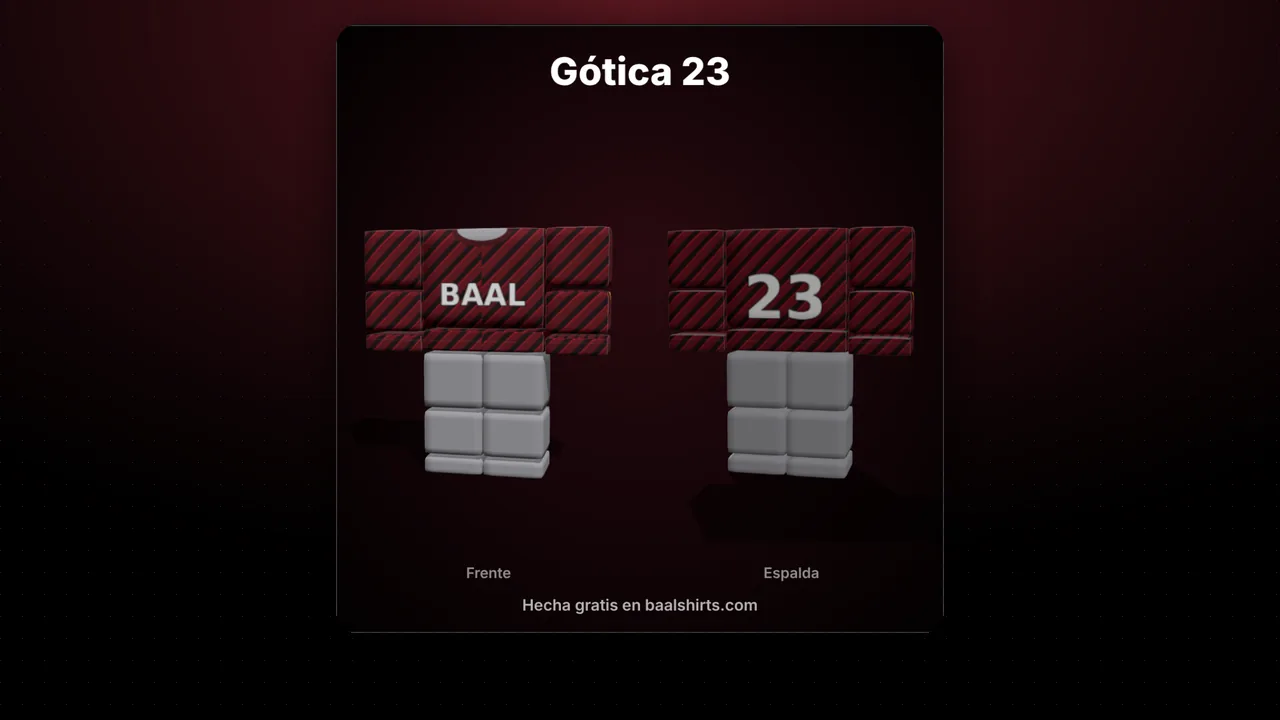
Figures reviewed on October 25, 2026. Baal Shirt Studio is not affiliated with Roblox. Figures are estimates; always confirm on Roblox before paying.
How to shade your clothing
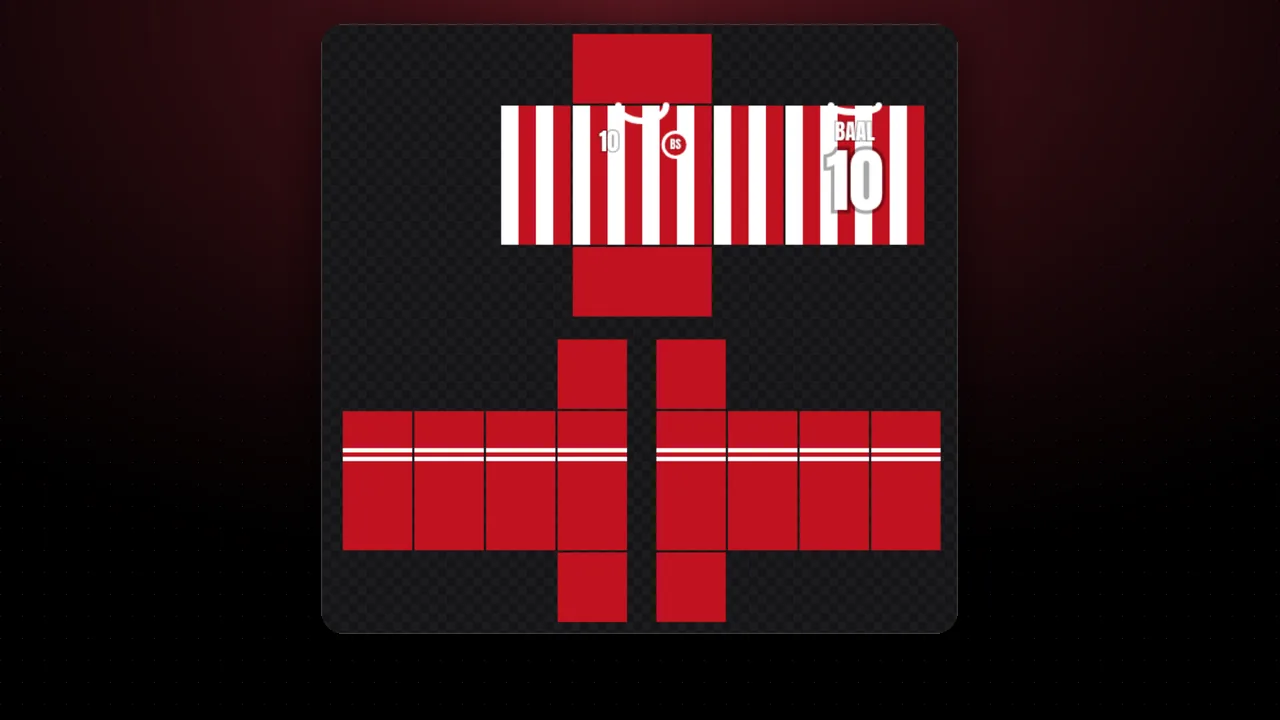
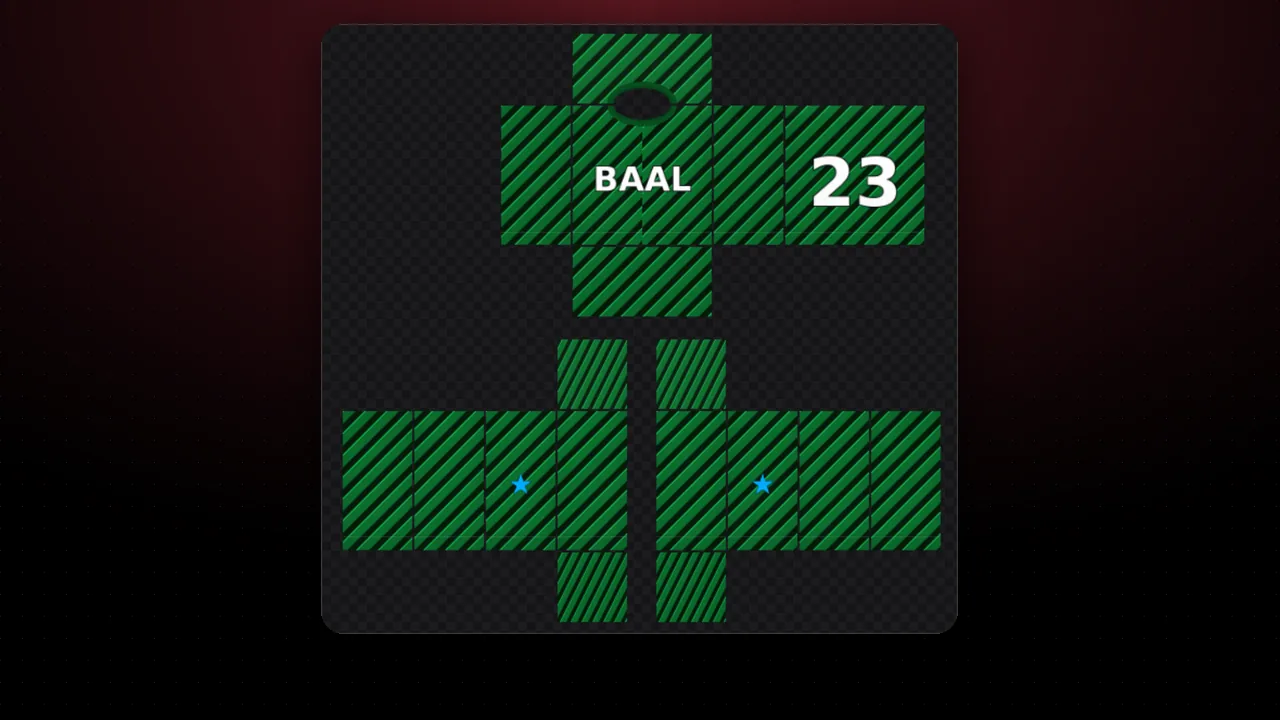
- Upload your shirt or pants template (585×559) or try with a plain shirt.
- Pick the style: soft for a clean look, wrinkled or baggy for more realistic fabric, and deep folds for a hoodie look.
- Adjust intensity and variation until you like it.
- Download the finished template or just the shading layer.
Shading is only applied where there is fabric; transparent parts stay transparent. Check the result with the template checker before uploading.
FAQ
What is a shading template?
A layer of shadows and highlights placed over clothing so it looks like real fabric: it darkens edges, marks folds and adds wrinkles at elbows and waist.
Can I use only the shading layer?
Yes. Press "Download shading only": it is a transparent 585×559 PNG you can place over your design in Photoshop, Photopea, Procreate or Krita with "Multiply" mode.
Does it look good on every color?
On dark colors raise the intensity, and on light colors lower it. Try until you like it.
Is my template uploaded to a server?
No. Everything happens in your browser.