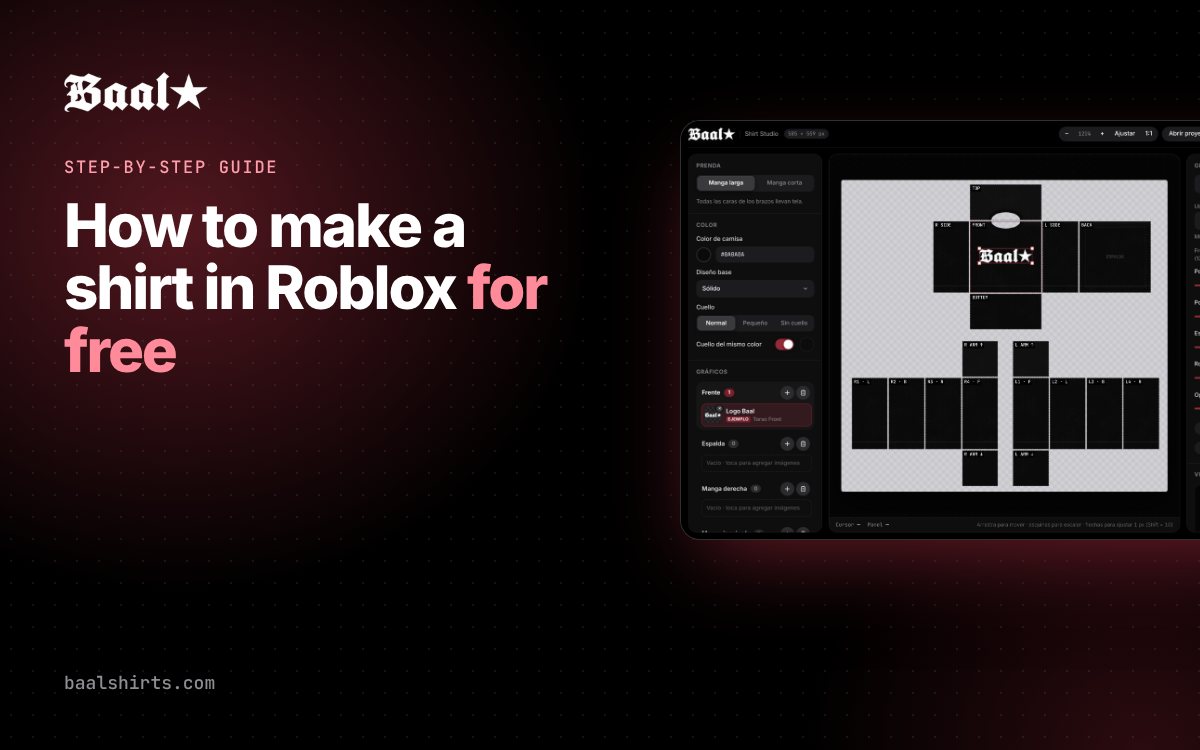
How to Use Baal Shirts Editor: Roblox Shirt Maker Tutorial
Learn how to use Baal Shirts Editor step by step: pick colors, add graphics to each panel, check the 3D preview and export your Roblox shirt as a PNG for free.
Want to know how to use Baal Shirts Editor? It’s simple: open the editor, pick your colors, place graphics on each panel, check the result in 3D and export a PNG that’s ready for Roblox. It’s free, runs in your browser and doesn’t need an account.
Quick summary: open the editor, set a base color, add graphics to each panel, adjust them, check the 3D preview, save your project and export the 585×559 PNG.
What Baal Shirts Editor is (and isn’t)
Baal Shirts Editor is the Baal Shirt Studio editor, a free web tool for making classic shirts in Roblox (Classic Shirts are the 2D clothing that covers the torso and arms). It’s not a Roblox experience. You open it in your browser at baalshirts.com/editor.
Here’s what it does:
- Uses the exact 585×559 pixel Roblox shirt template.
- Lets you design in layers on each area: front, back and sleeves.
- Shows your shirt in 3D on four avatars: Blocky R15, Blocky R6, Mujer 1 and Mujer 2 (two female body models).
- Exports a PNG with transparency.
- Saves your project so you can keep working later.
What it doesn’t do yet: pants, T-shirts (the square chest decal) or 3D layered clothing.
The editor works in English and Spanish: use the EN/ES button in the top bar to switch. The steps below follow the panels in order.
Before you start
You only need a few things:
- An up-to-date browser. A computer is more comfortable, but you can try it on your phone.
- Your own images or artwork, if you want to use them. PNGs with a transparent background work best.
- A simple idea. Your first shirts will look better with just a few elements.
Safety note: the editor never asks for sign-up or your Roblox login, and your images stay on your device. Never give your Roblox password to any site or app that claims to help you make clothes.
How to use Baal Shirts Editor step by step
Step 1: Open the editor
Go to /editor. The template loads right away, no forms or accounts.
Step 2: Get to know the template
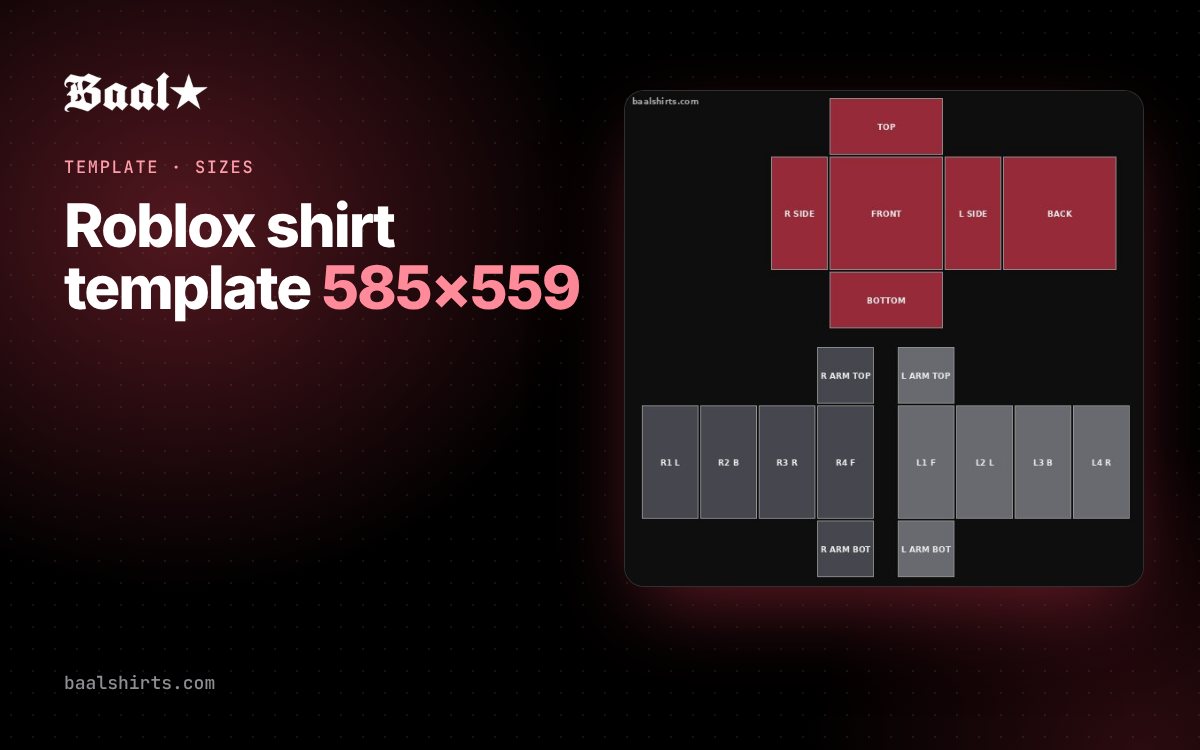
The template is a flat pattern of the shirt. Roblox folds it around the avatar, so each box is one face of the torso or arms.
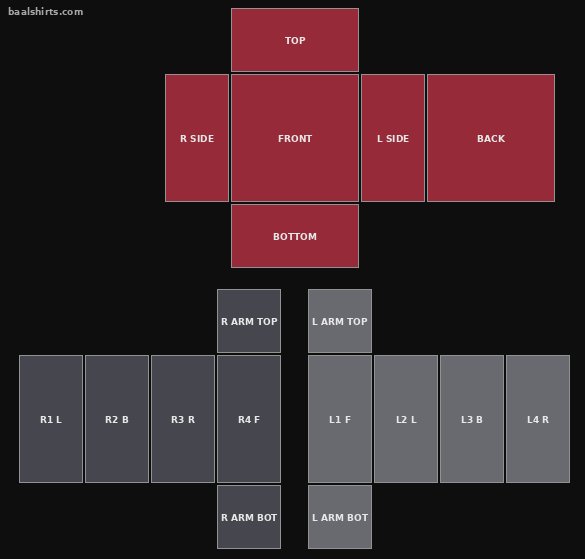
The main torso panels:
- FRONT: 128×128 px.
- BACK: 128×128 px.
- R SIDE and L SIDE: 64×128 px each.
- TOP and BOTTOM: 128×64 px.
The arms have 64×128 faces plus 64×64 top and bottom squares. Important: right and left are from the avatar’s point of view, not yours. For every size and coordinate, see our Roblox shirt template guide.
Step 3: Pick the base color, design and collar
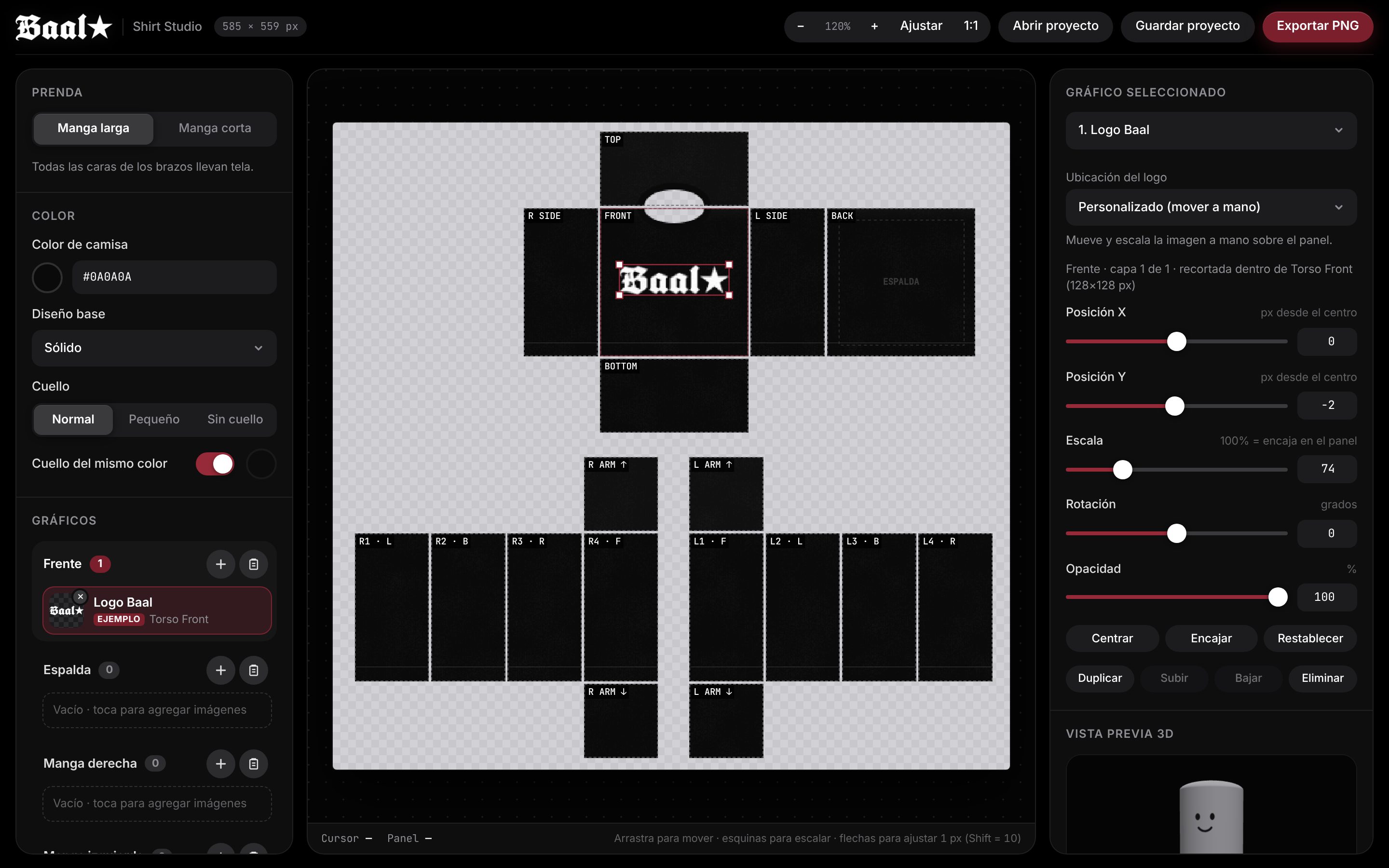
Start with the color panel. This is where you set the shirt’s base color, a base design and the collar style.
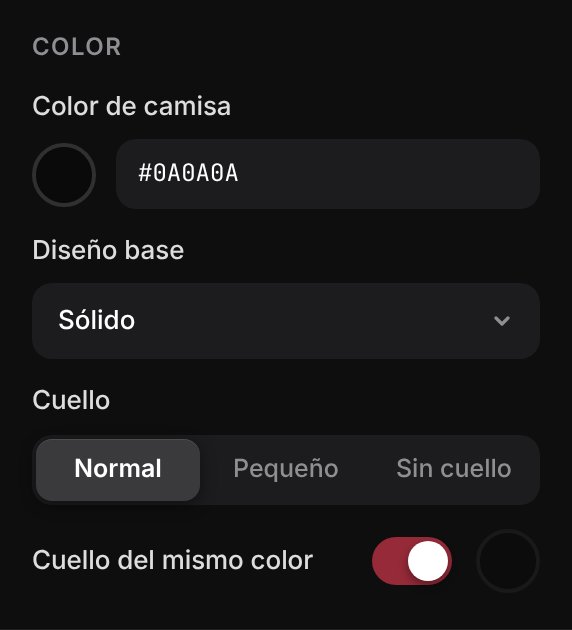
Tip: lock in the background color first. Choosing graphics is much easier once you see the shirt in its final color.
Step 4: Add graphics to each area
Open the graphics panel and choose which area you want to work on: front, back or sleeves. Each area has its own layers, so what you put on the front won’t mix with the back.
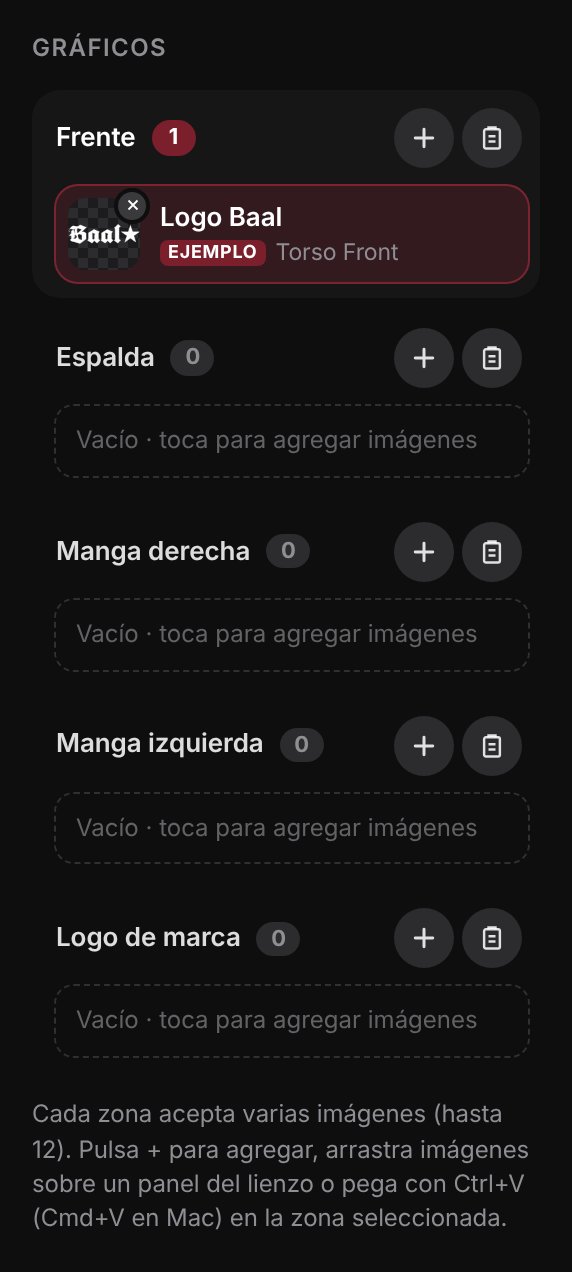
Always use original designs: your drawings, your name, shapes or patterns you made. Avoid logos, brands or copyrighted characters, since Roblox moderation can reject the item.
Step 5: Adjust position, scale and rotation
With a graphic selected, use the controls to move it, resize it and rotate it.
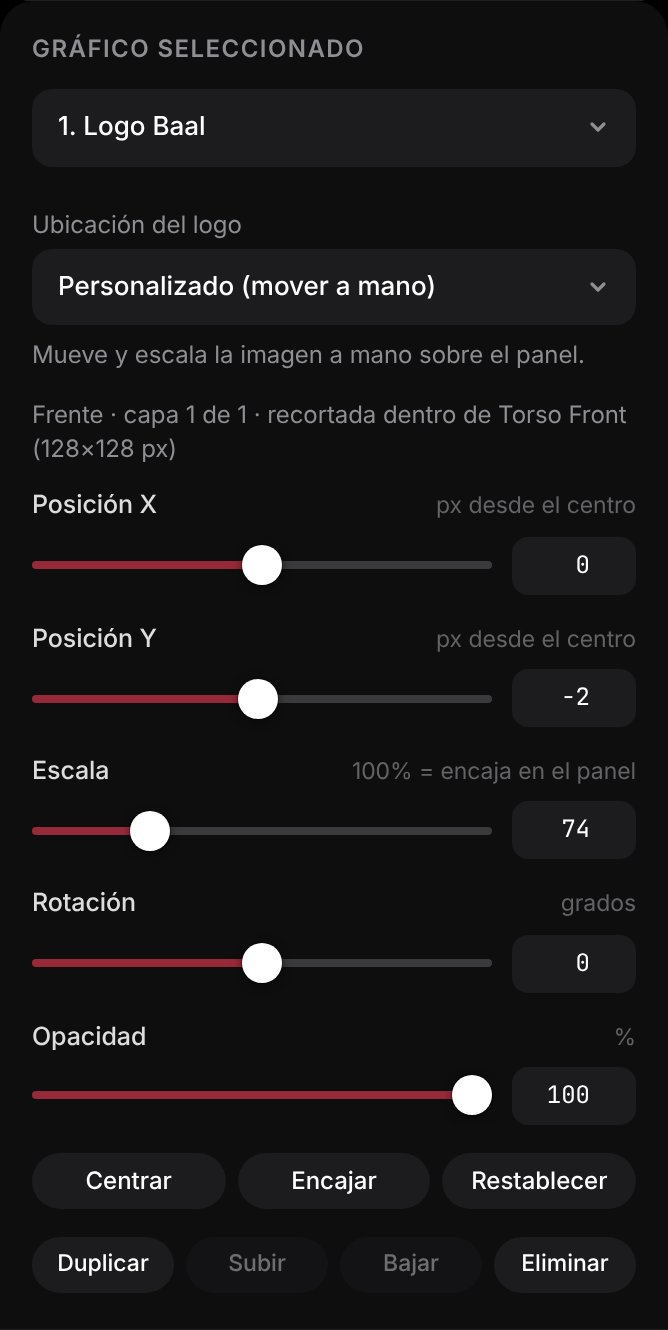
- Position: center it in the panel. A chest logo usually looks best slightly above center.
- Scale: don’t make it so big that it gets cut off at the edges.
- Rotation: handy for sleeve details or diagonal designs.
Step 6: Check it in 3D
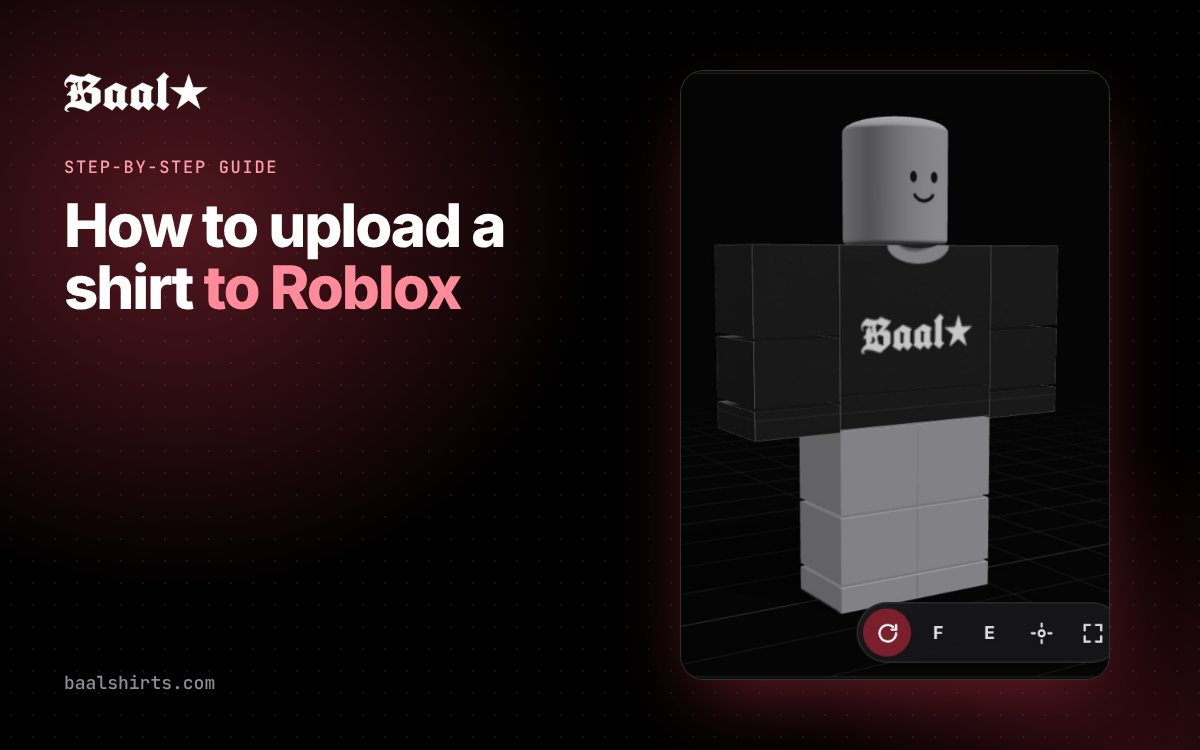
This is where you see the real result. Switch between Blocky R15, Blocky R6, Mujer 1 and Mujer 2, and rotate the avatar to check every side.
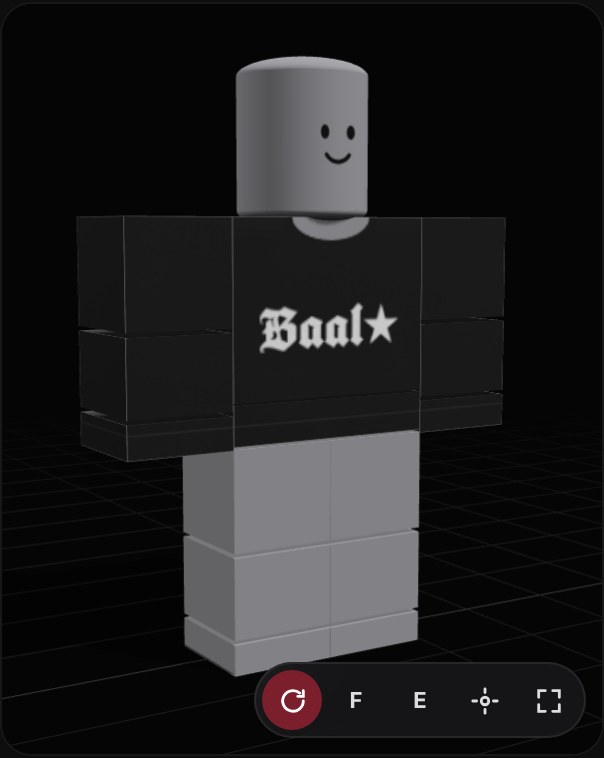
Pay extra attention to the sides, the sleeves and where the front meets the back. That’s where problems show up that you won’t notice on the flat template.
Step 7: Save your project
Save the project before you export. That way you can come back later, fix something or make variations (a new color, different sleeves) without starting over.
Step 8: Export the PNG
Export your shirt. You’ll get a 585×559 PNG with transparency, which is the format Roblox expects for a classic shirt.
Next up: uploading your shirt to Roblox
The editor’s job ends with the PNG. To wear or publish your shirt, you upload it through the Roblox Creator Hub. We cover it in detail in how to upload a shirt to Roblox.
Keep in mind:
- Roblox may charge a fee to upload or publish clothing, plus a commission on sales. Check the current amounts in the Creator Hub, since they change.
- Every item goes through moderation. Nobody can guarantee it’ll be approved or that it’ll sell.
For the whole process from idea to avatar, read how to make a shirt in Roblox for free.
Common mistakes to avoid
- Mixing up right and left. It’s the avatar’s right. Always double-check in the 3D preview.
- Leaving the sleeves blank. If you only design the front, the arms stay the base color. That can be fine, just make sure it’s on purpose.
- Graphics cut off at the edges. A design that crosses a panel border can look split on the avatar. Leave a small margin.
- Seams that don’t line up. If you use a pattern, check in 3D how the front meets the sides.
- Low-quality images. A small image stretched up looks blurry. Use sharp files.
- Not saving. Close the tab without saving and your work is gone.
Tips for a better-looking shirt
- Stick to 2 or 3 colors that go well together.
- Test your design on all four avatars, not just one.
- Add a small detail on the back or a sleeve. It makes the shirt feel finished.
- Need reference templates? Check out our resources.
Your next step
Now you know how to use Baal Shirts Editor from start to finish. The best way to learn is to try it: open the editor, make a simple shirt with one color and a chest graphic, check it in 3D and export it. Your second one will go way faster.
FAQ
Is Baal Shirts Editor free?
Yes. The Baal Shirt Studio editor is free, runs in your browser and needs no sign-up. Uploading to Roblox may have a fee, so check the current amount in the Creator Hub.
Is it a game inside Roblox?
No. It's a web editor you open at baalshirts.com/editor. You design there, export the PNG and then upload it to Roblox through the Creator Hub.
Do my images get uploaded anywhere?
No. Your images never leave your device, and you never need to log in with your Roblox account.
Is the editor available in English?
Yes. The editor works in English and Spanish. Use the EN/ES button in the top bar to switch.
Can I make pants or 3D clothing?
Not yet. The editor is for classic shirts using the 585×559 template. Pants and layered clothing can't be edited for now.