How to Make a Shirt in Roblox for Free: Step-by-Step Guide (2026)
Learn how to create your own Roblox classic shirt from scratch without paid software: the 585×559 template, design, 3D preview and PNG export.
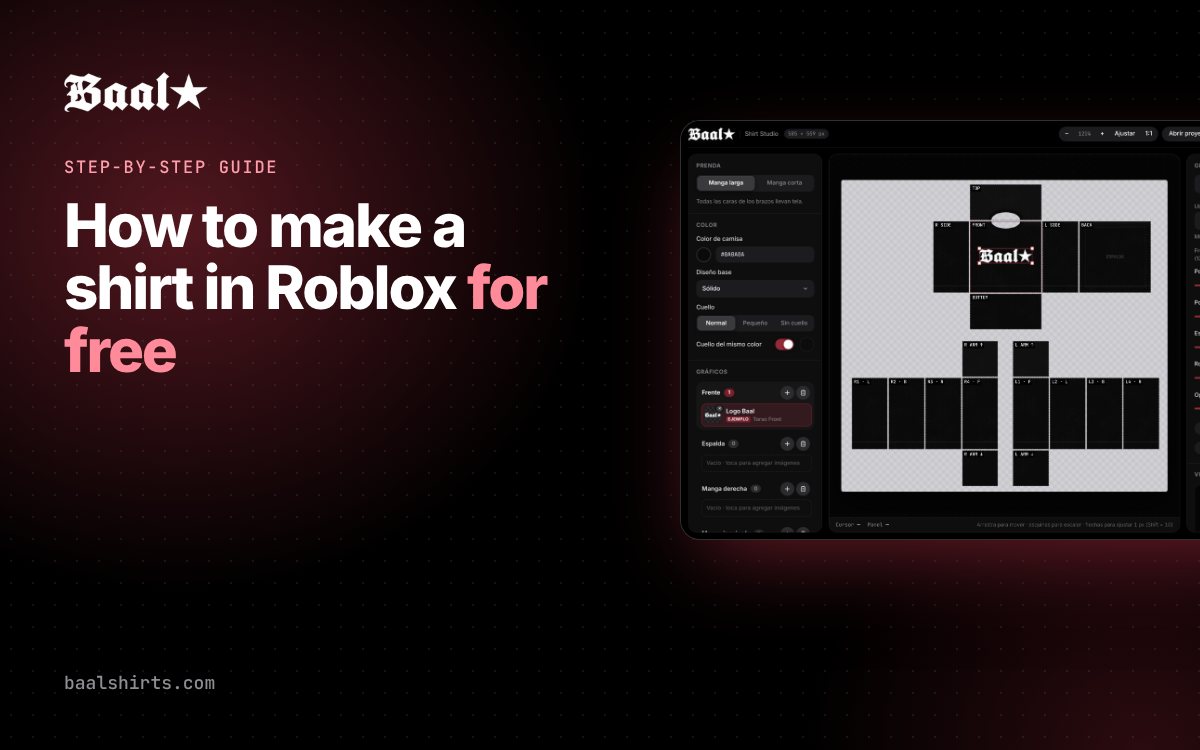
Making your own shirt in Roblox is easier than it looks. You don’t need Photoshop or design experience: just an idea, an image (your logo, a drawing, some text) and an editor that follows the official template. This guide walks you through the whole process, from idea to an upload-ready PNG.
Quick version: open the free editor, pick sleeves and color, add your graphic to the front, adjust it, check it in 3D and hit Export PNG. Then upload it to Roblox as a Classic Shirt.
What a Classic Shirt is
Roblox has two kinds of 2D “shirts”:
- T-Shirt: a single square image stuck on the avatar’s chest. Simple, but it doesn’t cover the arms or back.
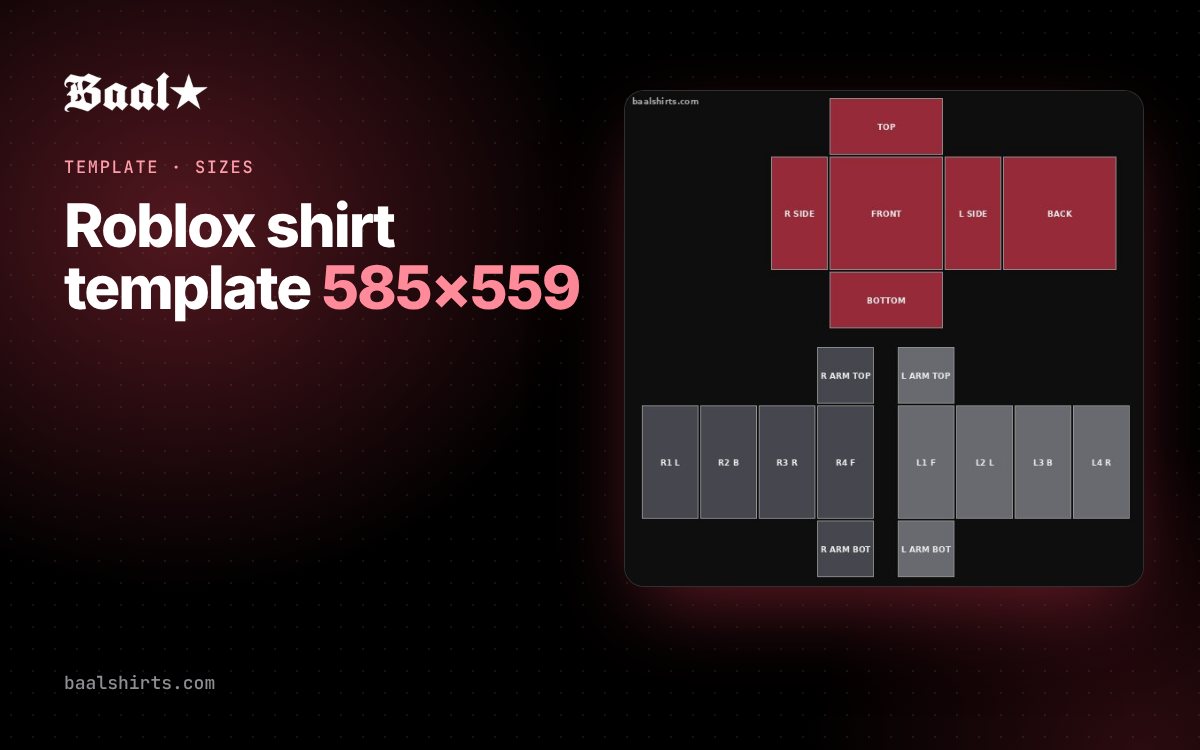
- Classic Shirt: a 585×559 pixel template that wraps around the torso and arms. It lets you control the front, back, sides, shoulders and sleeves.
This guide is about the Classic Shirt, the one that gives you full control. To understand every panel of the template in detail, read the 585×559 template guide.
What you need before you start
- Your graphic, ideally a PNG with a transparent background. JPG and WebP also work.
- An editor that works on the exact template. We’ll use Baal Shirt Studio: free, browser-based, no sign-up.
- A Roblox account to upload the item at the end.
Step 1: pick your shirt base
Open the editor and start with the garment itself, before adding art:
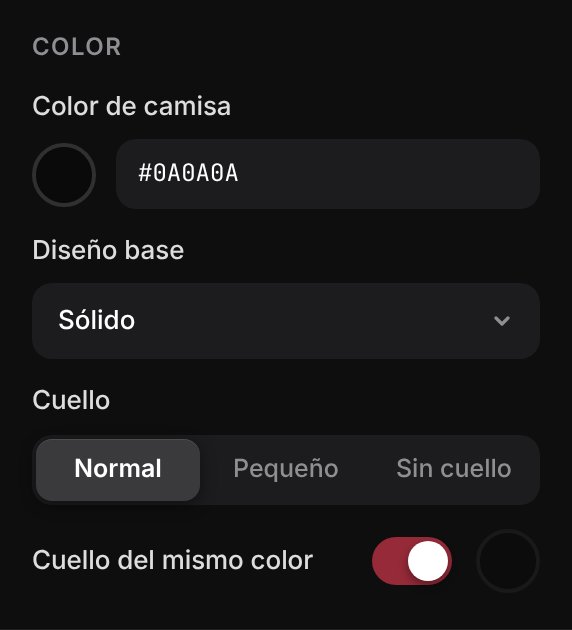
- Long or short sleeves. With short sleeves, the lower arm shows the avatar’s skin.
- Shirt color, with the picker or a HEX code (for example
#0A0A0Afor a deep black). - Base design and collar: normal, small or none.
Step 2: add your graphics
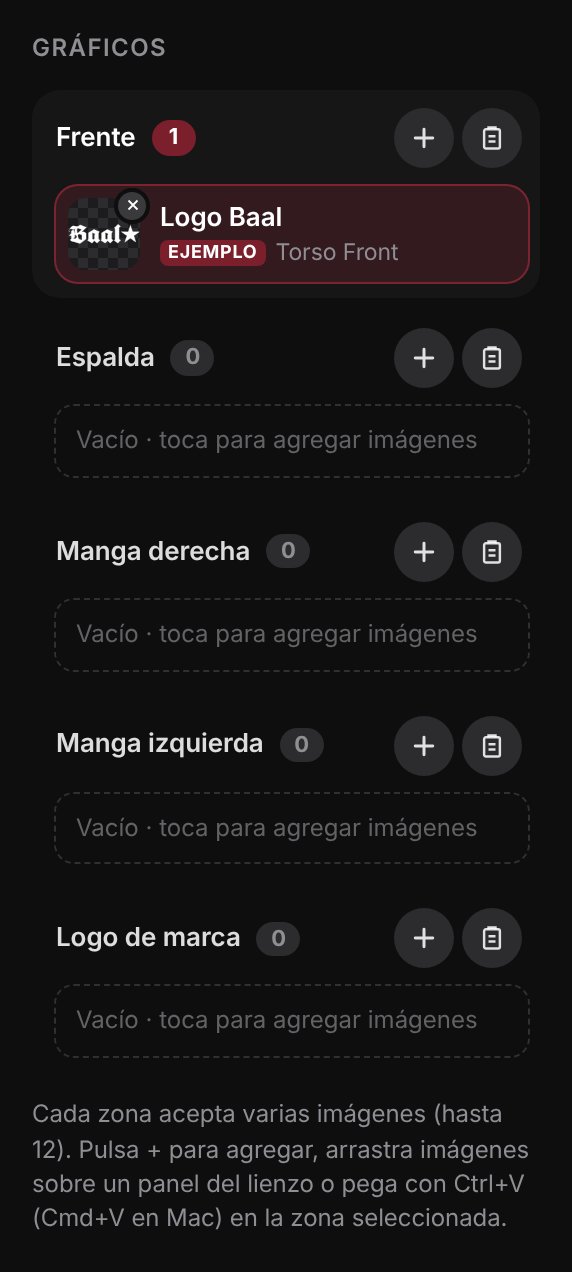
The shirt is split into areas: front, back, right sleeve and left sleeve. Each one accepts one or more images, which work as layers.
- Click + on the area you want and pick your image, or paste it from your clipboard.
- Use transparent PNGs so there’s no white box around your logo.
- Combine layers: for example, a big logo on the back and a small one on the chest.
Step 3: adjust to the pixel
Drag the graphic on the template or use the controls on the right panel:
- X/Y position, scale, rotation and opacity.
- Buttons to center, fit to the panel, duplicate and reorder layers.
- Arrow keys nudge the graphic 1 pixel (10 with
Shift), perfect for exact centering.
Tip: leave a few pixels of margin from the edges of each panel. On the avatar, those edges are the “seams” between the faces of the torso and arms, and details touching them can look cut off.
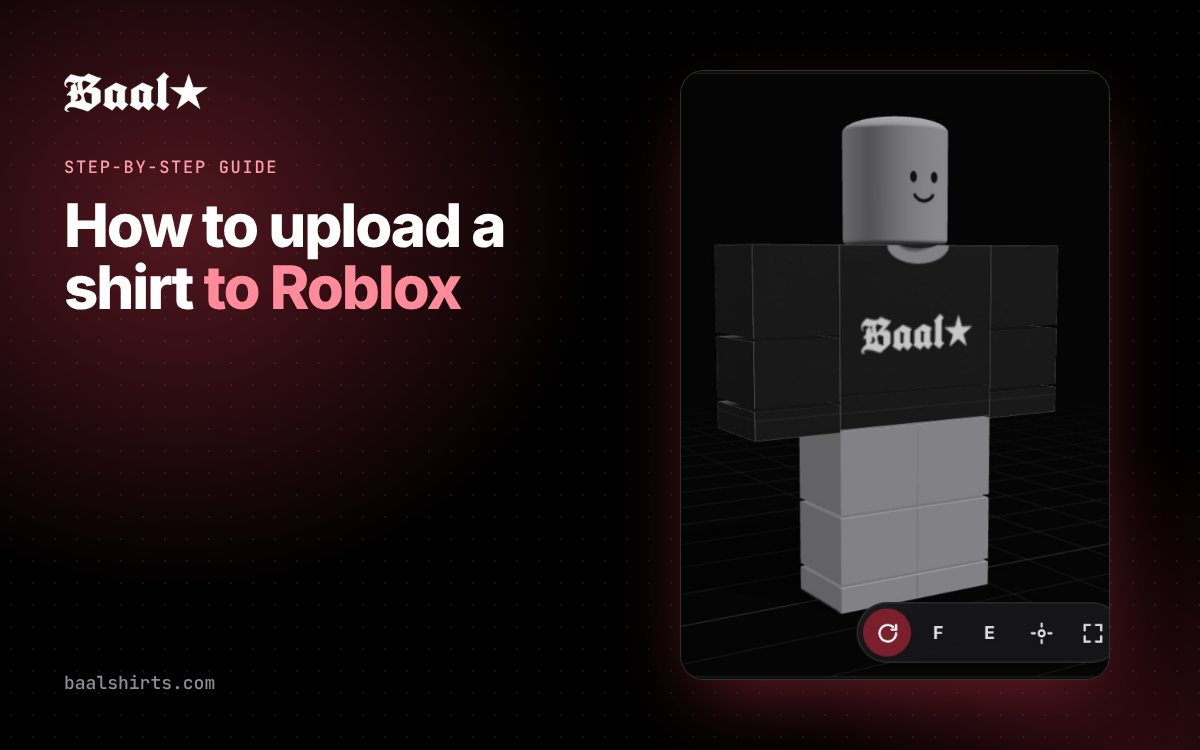
Step 4: check it in 3D before uploading
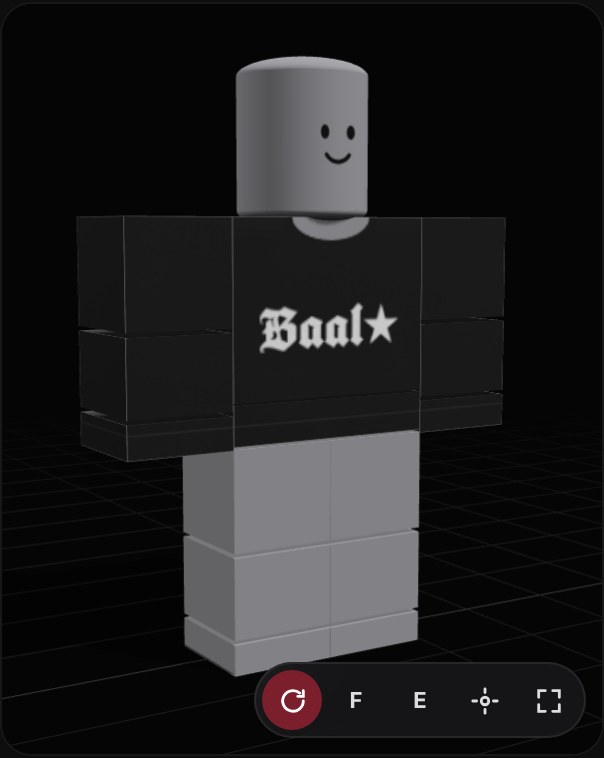
This step saves the most Robux. Uploading costs money, so see how it looks first:
- Try it on Blocky R15, Blocky R6 and two female body types.
- Rotate the avatar, zoom in and change the skin color.
- If you already have classic pants, load them to preview the full outfit.
Step 5: export the PNG
Hit Export PNG. You get an image of exactly 585×559 pixels, with no guides or grid and transparency wherever there’s no fabric. That’s the file you upload to Roblox.
Before closing, hit Save project so you can reopen the design later and keep editing.
Step 6: upload it to Roblox
With your PNG ready, go to the Roblox Creator Hub and upload it as a Classic Shirt. The full process, including moderation and fees, is in how to upload a shirt to Roblox step by step.
Common mistakes to avoid
- Uploading an image that isn’t 585×559. The panels won’t line up with the body and the design will shift.
- White background instead of transparent. You’ll see a box around your graphic.
- Details touching the edges. They get cut at the avatar’s seams.
- Using logos or characters you don’t own. Roblox may reject the item or penalize your account for copyright.
Next step
You now know everything you need to make your first shirt. Open the free editor and try it with your logo: your PNG will be ready in a few minutes.
FAQ
How much does it cost to make a shirt in Roblox?
Designing it can be free with an online editor like Baal Shirt Studio. What Roblox does charge is an upload fee in Robux when you publish the item; check the current amount on the Creator Hub upload screen.
Do I need Photoshop to make Roblox clothes?
No. You can design right in your browser with an editor that already includes the 585×559 template, per-panel guides and a 3D preview.
What is the difference between a T-Shirt and a Classic Shirt?
A Roblox T-Shirt is a single square image placed on the chest. A Classic Shirt uses the full 585×559 template and covers the torso and arms, including front, back, sides and sleeves.
Does it work with R15 and R6 avatars?
Yes. Classic shirts adapt to both body types. In the editor you can preview them on Blocky R15, Blocky R6 and two female body types.